Tutorial
How to Download Your Snapchat Memories and Save Them Forever
Time required: About 30 minutes of your time (plus a few hours waiting on Snapchat to prepare your export)
This guide walks you through the complete process, from requesting your data inside Snapchat to downloading a clean, organized archive of all your memories with original dates and locations restored.
Before you start: the two-part process
Saving your Snapchat memories involves two separate steps that are easy to confuse:
-
Requesting your data from Snapchat: you ask SnapChat to package up your memories, and they email you one or more download links. This part is free and takes no special tools, but the files you get are raw and don't contain the full content, like the overlays, dates, and geo information.
-
Converting the export with SnapEasy: you upload the zip files you got from Snapchat, all of them, and SnapEasy transforms them into a clean, properly dated set of zip files you can download.
You only need both steps if you care about the GEO information, proper dates, and overlay text, etc. The Snapchat export alone will give you your files, but without the right dates, GPS data, or overlay stitching; meaning your memories will appear as if they were all taken today, without location, and with captions separated from the photos.
Before requesting your export, there's one important thing to do.
If you've ever used Snapchat's My Eyes Only feature, the password-protected private vault, those memories are not included in your standard data export. They'll be left behind unless you manually move them out first.
If you use My Eyes Only:
- Open Snapchat and navigate to Memories
- Tap the My Eyes Only tab
- Enter your passcode
- Long-press on memories you want to keep and select Move to Memories
- Repeat until everything is out of the vault
If you don't use My Eyes Only, or you're confident it's empty, skip this step and continue to Part 2.
Important: If you've forgotten your My Eyes Only passcode, Snapchat cannot recover it for you. There is no reset option. Those memories cannot be retrieved. If there's any chance you remember the passcode, try it now and don't wait.
We have a dedicated guide with more detail on this step: How to save your My Eyes Only memories before the deadline.
Requesting the export works a bit differently on mobile and desktop. Pick your platform:
What happens next
Snapchat will prepare your data package and email you a download link. For most accounts, this arrives within a few hours. Accounts with very large Memories archives (thousands of Snaps) may take up to 24 hours.
The email will come from Snap to the email address linked to your account. Check your spam folder if you don't see it.
The download link expires. Snap's download links are time-limited. Download your file as soon as the email arrives. If the link expires before you use it, go back to My Data and submit a new request.
When your export is ready, Snapchat emails you a link back to your account, where every part is waiting. Here's how to grab all of it:
-
Open the "Your Snapchat data is ready for download" email from Team Snapchat and click through to My Data.

-
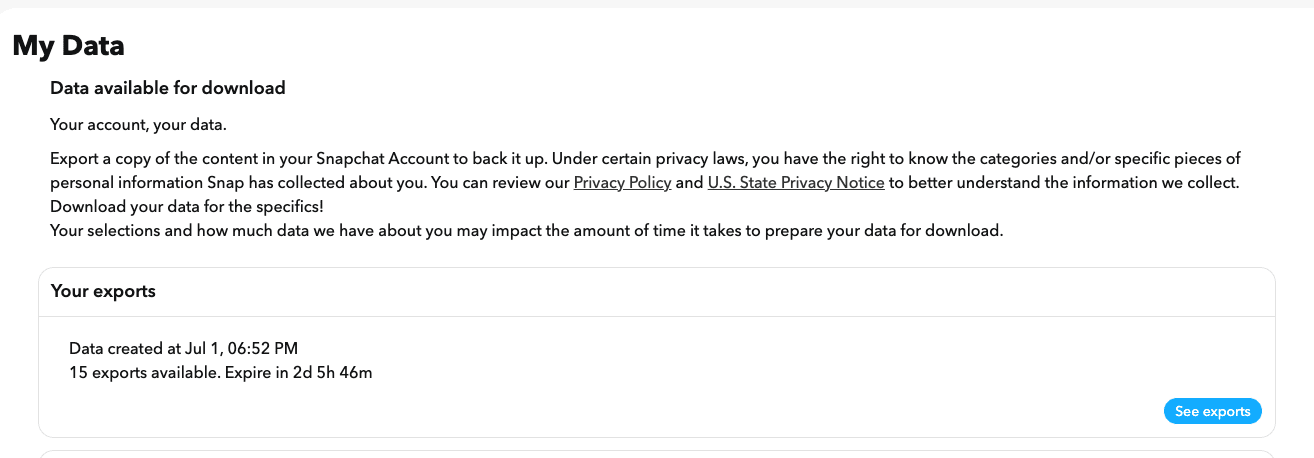
On the My Data page, find the Your exports panel and click See exports.
-
Download every part. Large Memories archives are split into multiple ZIP files, named like
mydata~1780352932352.zip, and a big account can span many of them. Click Download on each one. Smaller accounts get a single ZIP.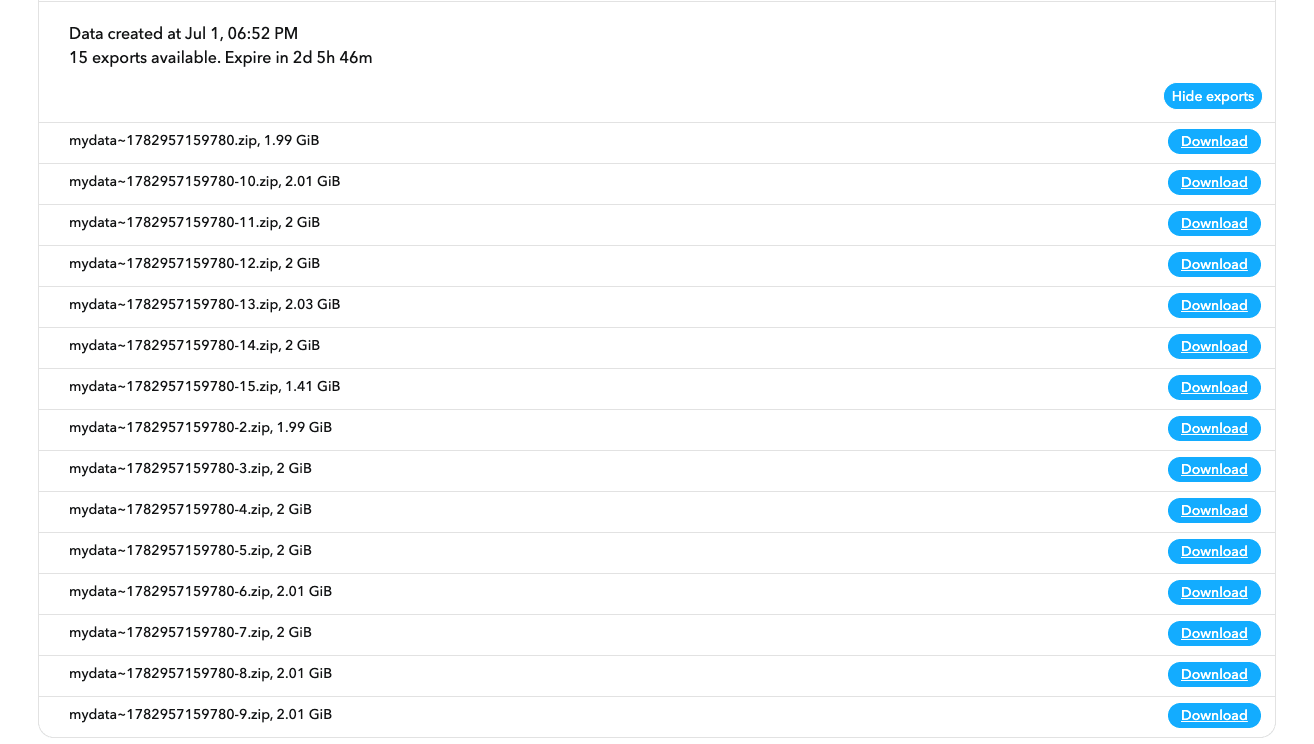
-
Each part downloads as a
.zip. Save them all into one folder on your computer (not your phone). They're large, often a couple of gigabytes each, so make sure you have the free space.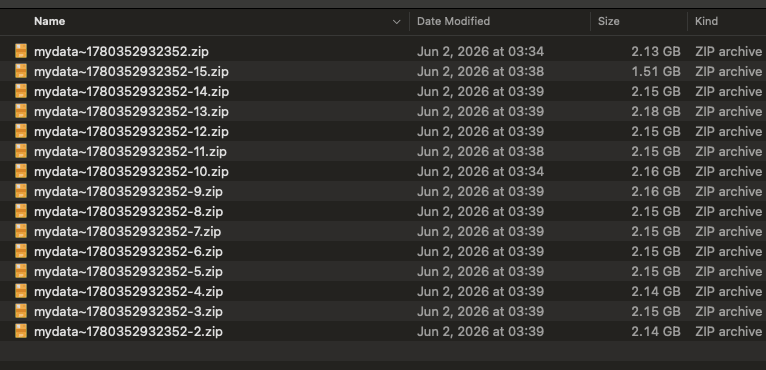
A few things to get right:
- Grab every link and every part. If Snap gives you more than one download, you need all of them. A single missing part means missing memories.
- Keep the ZIP files together. Save them into one folder so they're easy to select in the next step.
- Don't unzip, rename, or repackage them. SnapEasy reads the ZIP files exactly as they download from Snapchat. Extracting or renaming them can strip the dates, GPS, and overlay data SnapEasy needs.
Do not try to use these raw files directly. Straight out of Snapchat, the media has no meaningful dates, GPS is stripped, and photos with captions or overlays are split into separate files that don't make sense on their own. That's exactly what SnapEasy fixes in the next step.
- Go to SnapEasy and create your account (or sign in if you already have one)
- On your dashboard, click New upload
- Add all the ZIP files Snapchat sent you. Drag them onto the uploader or click Choose files. If your export came in multiple parts, add every part; SnapEasy lists them so you can confirm nothing is missing. You don't need to unzip anything first
- Tick the consent box and click Upload
Here's the whole upload, start to finish:
Uploads are resumable. If your connection drops mid-transfer, it picks up where it left off instead of starting over. Once your parts finish uploading, SnapEasy gets to work. It will:
- Read the original capture date, time, and GPS coordinates packed inside your export
- Restore the correct date and time on every photo and video
- Write GPS coordinates back into the EXIF data of each file
- Stitch any overlays, captions, or stickers back onto the base photos and videos
- Organize everything chronologically into a clean archive
You'll see a progress indicator on your dashboard. You don't need to keep the tab open. We'll email you when your archive is ready. For most accounts the full process completes in the time it takes to make a coffee; larger archives may take 20–30 minutes.
When processing is complete, SnapEasy will notify you and your archive will be ready to download from your dashboard.
Your finished archive is one or more ZIP files (very large accounts are split into multiple parts). Inside, your photos and videos are:
- Named with meaningful, date-based filenames
- Organized chronologically
- Tagged with correct EXIF dates and GPS coordinates
- Rendered with overlays intact, looking exactly as they did in the Snapchat app
Google Photos
- Go to photos.google.com
- Click Upload → Computer
- Select the contents of your SnapEasy archive
- Google Photos will automatically sort them into your timeline by the restored EXIF date, and location will appear on the map
Apple Photos (iPhone / Mac)
- On iPhone: open the Photos app → tap the + button → Import
- On Mac: open Photos → drag your files into the app
- Apple Photos will read the EXIF dates and slot everything into the correct position in your library
Just keeping the files
If you'd rather keep your memories as local files without importing to a cloud service, the archive is ready to use as-is. The files are standard JPEGs and MP4s, compatible with any device or software.
Common questions
What if I don't see a Memories section in My Data? If you never saved anything to Memories, there's nothing to export. If you believe you do have Memories, make sure you're logged into the correct Snapchat account. Some people have multiple accounts.
Snapchat gave me several ZIP files. Do I upload all of them? Yes. Large Memories archives are split into multiple parts. Upload every ZIP file from your export together, in one go. SnapEasy needs the complete set to rebuild your archive. Uploading only some of the parts means only some of your memories come back. Don't unzip them first; add the ZIP files exactly as they downloaded.
Can I do this on my phone instead of a computer? You can submit the export request on your phone, but we recommend downloading and uploading the export files from a computer. Snap's export files can be several gigabytes each, which is awkward to handle on mobile.
My download link expired. What now? Go back to Settings → My Data in Snapchat and submit a new request. A fresh link will be emailed to you.
The process is taking longer than expected. Is something wrong? Very large archives take more time. As long as your dashboard shows an active progress state, processing is running normally. You don't need to keep the browser window open. We'll email you when it's done.
Do I need to keep my Snapchat account open while SnapEasy processes my files? No. Once your export is uploaded, everything happens on SnapEasy's servers. You can close the app, log out of Snapchat, or even delete your account. It won't affect your processing.
You're done
Your Snapchat Memories are now safely in your hands, with correct dates, locations, and overlays intact, and completely independent of Snapchat. When Snapchat locks memories behind a paywall in January 2027, your memories will be safe.